
Profile Settings
Manage your personal account settings: your display name, email notification preferences, color theme, and timezone. All settings on this page apply only to you and do not affect other team members.
Opening Profile Settings
Click your name or avatar in the bottom-left corner of the sidebar, then select Profile Settings. This opens a dedicated settings page at /settings/profile.
The page is divided into three tabs across the top:
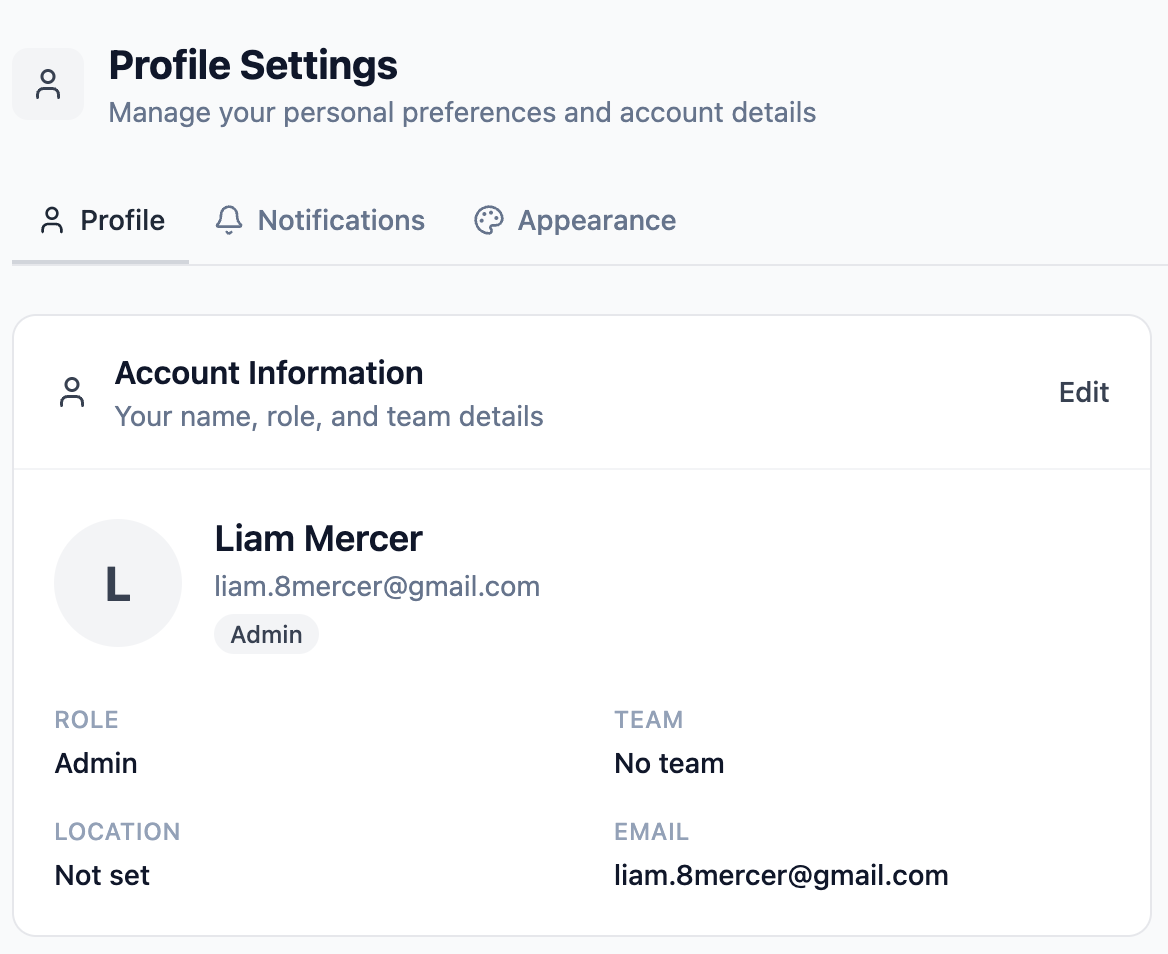
- Profile — your name, role, team, location, and email
- Notifications — which events send you an email (Admins and Agents only)
- Appearance — color theme and timezone
Profile tab
The Profile tab shows your account information: display name, role, team membership, location, and email address.
If you are an Admin, you can click Edit in the top-right corner of the card to update your own name, location, and team memberships directly. Changes are saved with the Save Changes button.
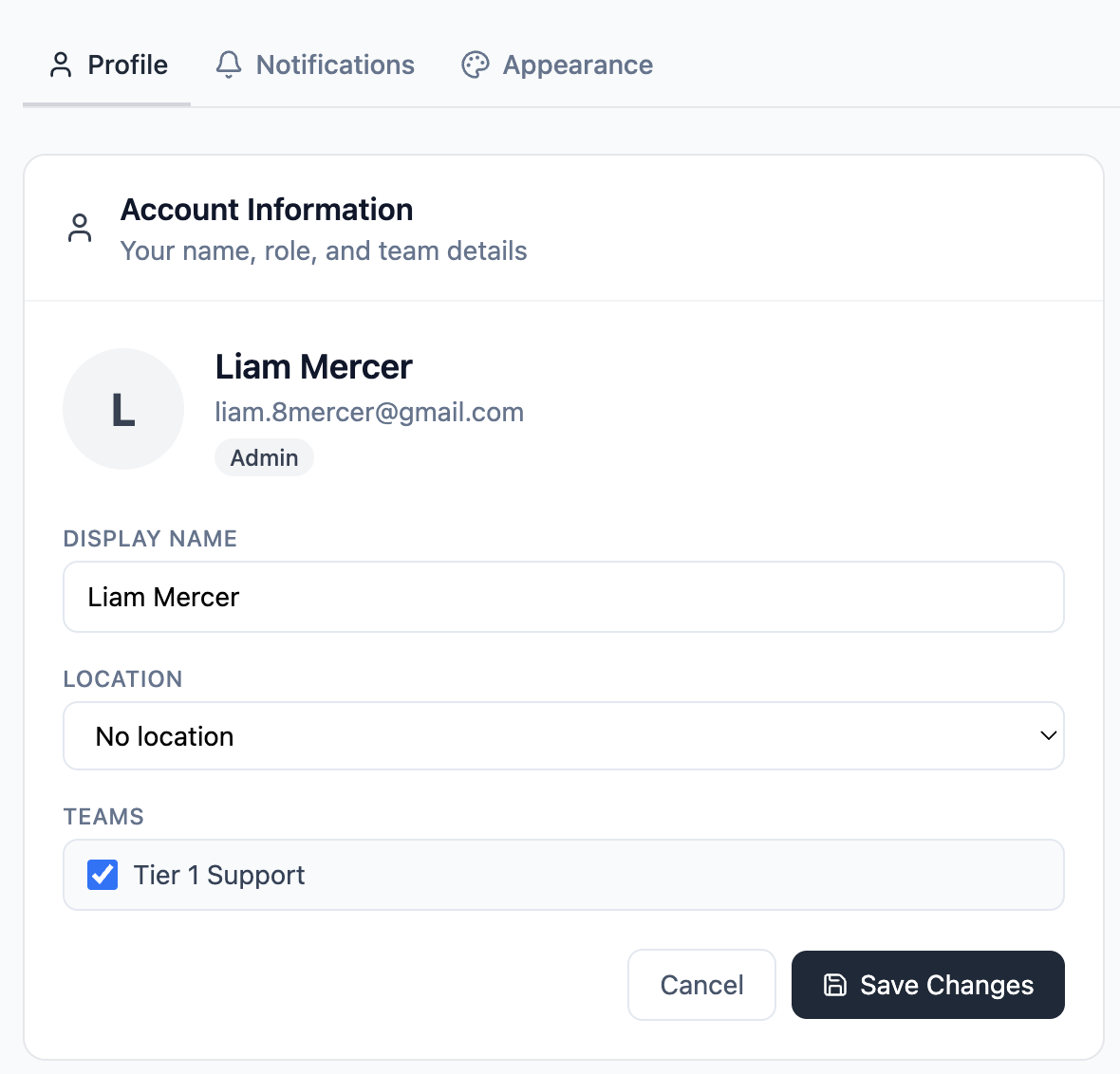
If you are an Agent or End User, the Profile tab is read-only. Your name, team, and location are managed by your organization's Admin under the Team Members section. A note at the bottom of the card confirms this.
Notifications tab
The Notifications tab lets you control which events send you an email. This tab is available to Admins and Agents only. End Users do not see it.
There are four notification types. Each one has an on/off toggle and a sub-toggle that controls how much detail is included in the email.
How toggles work
Each notification type has a parent toggle and a sub-toggle. Turning off the parent toggle automatically disables the sub-toggle beneath it, since there is no email to include details in. You can turn the parent back on without re-enabling the sub-toggle.
All changes save automatically when you click a toggle. There is no save button.
Appearance tab
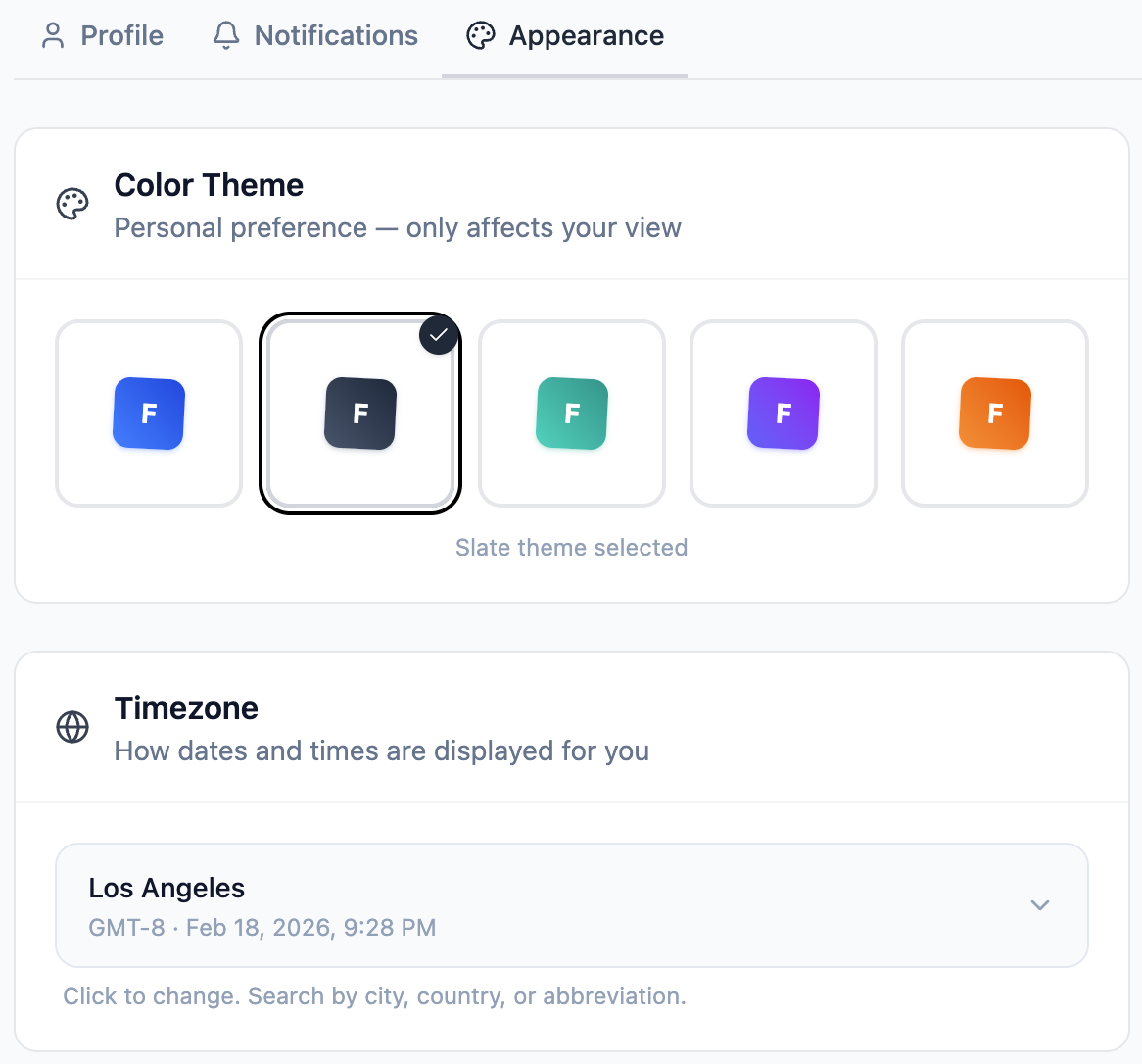
The Appearance tab has two sections: color theme and timezone.
Color theme
FyneDesk comes with five color themes. Clicking a theme swatch switches it instantly. Accent colors, button highlights, sidebar states, and other UI elements update immediately. The active theme shows a checkmark badge and its name is displayed below the swatches.
Timezone
Your timezone controls how dates and times are displayed throughout FyneDesk: ticket creation times, comment timestamps, activity logs, and notification times. It does not affect other users.
Click the timezone selector to open a searchable dropdown. You can search by:
- City name (e.g. "London", "Tokyo", "Santiago")
- Country name (e.g. "Brazil", "India", "Germany")
- Timezone abbreviation (e.g. "PST", "GMT", "IST")
- Region name (e.g. "Eastern", "Pacific", "Central")
Select a timezone and it saves automatically. The current time and UTC offset for your selected timezone are shown next to the selector.
Frequently asked questions
Why don't I see the Notifications tab?
The Notifications tab is only available for Admin and Agent roles. End Users do not have access to notification settings.
Can I turn off all email notifications?
Yes. Turn off all four parent toggles on the Notifications tab and you will not receive any notification emails from FyneDesk.
What triggers the "new ticket created" notification?
This notification fires whenever any new ticket is submitted in your organization, whether it was created manually by an agent, submitted through the Client Portal, or received via email. Every Admin and Agent who has this toggle enabled will receive the email, except the person who created the ticket.
Do co-assignees get comment notifications?
Yes. If you are a co-assignee on a ticket and you have the "new comment" notification enabled, you receive an email when someone else comments on that ticket. The comment author does not receive a notification for their own comment.
Does my timezone affect other people's views?
No. Timezone is a personal setting. It only changes how times are displayed for you. Other users see times in their own timezone.
Can I change my password?
Use the Forgot password link on the login page. Enter your email address and FyneDesk will send you a reset link to set a new password. There is no in-app password change form.
Can I change my email address?
Email address changes are not currently supported through the app. Contact support at support@fynedesk.io if you need your account email updated.