
Inviting Team Members
Add agents and admins to your FyneDesk workspace using the invitation system. Understand what each role can do before you assign it.
User roles in FyneDesk
Every person in your FyneDesk workspace has one of three roles. The role controls what they can see and do.
How invitations work
FyneDesk uses an invitation-based system to add team members. Instead of creating an account directly, you send an invitation to the person's email address. They receive a link, click it, set a password, and are added to your organization automatically.
This prevents new users from accidentally creating a separate, disconnected workspace instead of joining yours.
Inviting someone
You need to be an Admin or Owner with the Manage users permission. In the left sidebar, open the Admin section, then select Team Members. This opens the People & Access hub on its Users tab. People without that permission do not see Team Members in the sidebar.
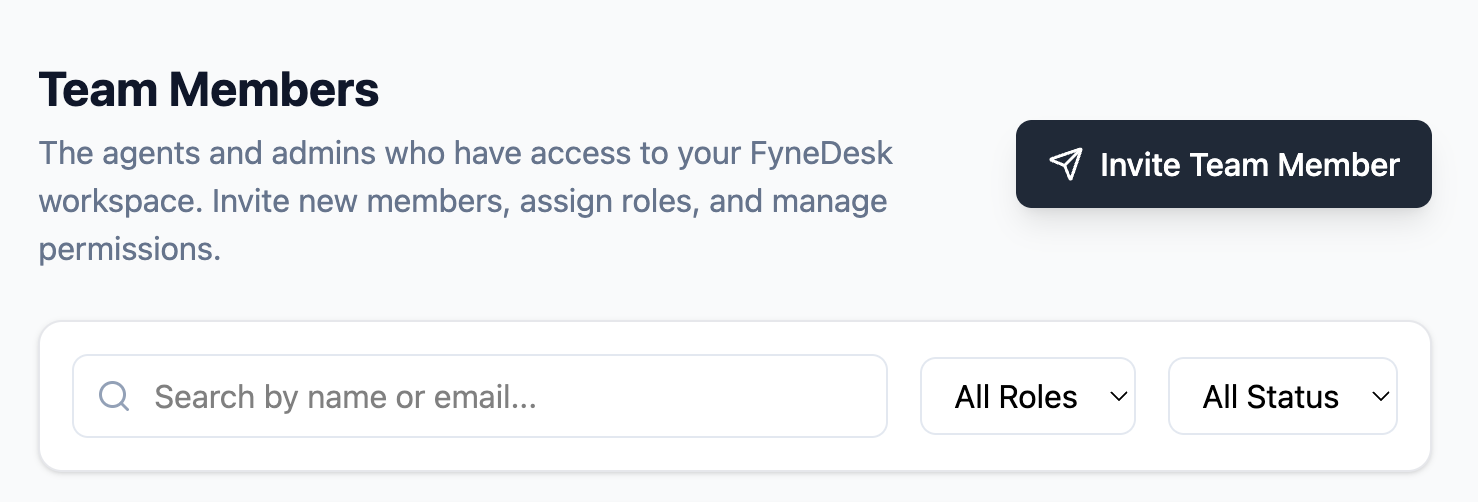
- 1Click Invite Team Member in the top-right corner of the Users tab.
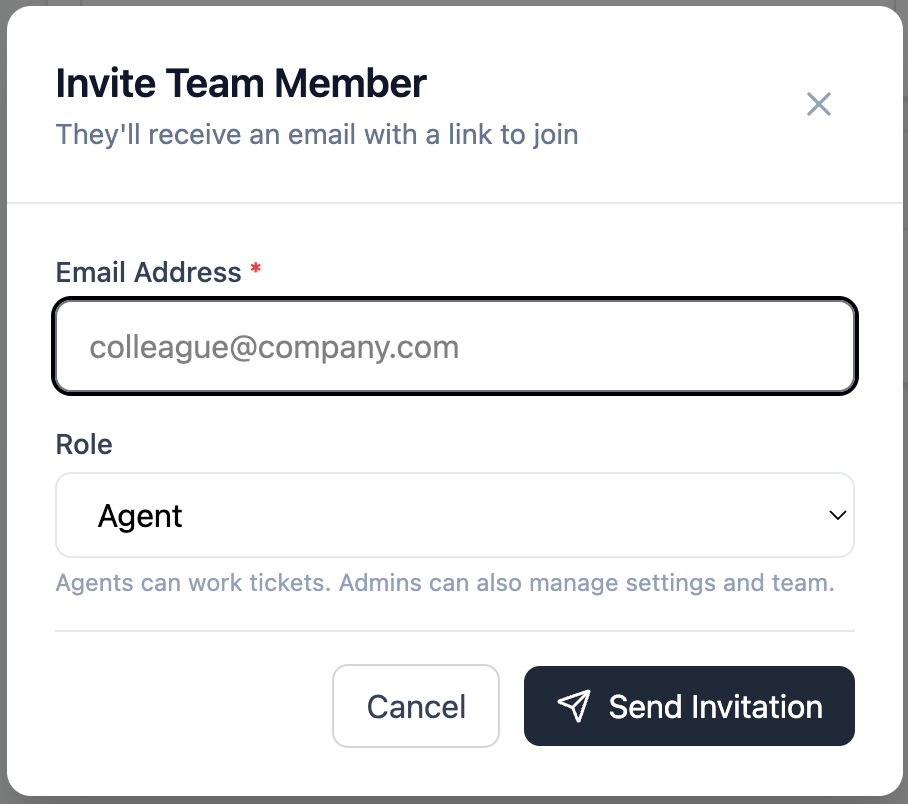
- 2Enter the person's email address, choose Agent or Admin, and optionally set their ticket access.
- 3Click Send Invitation. FyneDesk emails them a secure invitation link.
What the invited person sees
The invitee receives an email with a link to accept the invitation. When they click it, they are taken to a page where they set their full name and password. After completing this, they are logged in and added to your organization.
They do not need to go through the normal signup flow — the invitation handles everything.
Managing existing users
From the Team Members list, Admins and Owners with the right permission can:
- See all team members and their current roles
- Open a member, choose Edit Team Member, and change their Role field
- Deactivate a user to prevent them from logging in without deleting their data
- Re-send a pending invitation if it hasn't been accepted yet
Deactivating a user
When a team member leaves, deactivate their account rather than deleting it. Deactivation immediately blocks them from logging in while preserving their ticket history and comments. Their past work stays intact and attributed to them.
To deactivate: find the member in Team Members, open their options, and select Deactivate.
Frequently asked questions
Can someone join my organization without an invitation?
Not without an Admin's approval. If someone signs up with a verified email address on your company's domain, they can request to join your workspace — an Admin reviews the request and accepts (choosing their role) or denies it. There is no automatic joining. See the domain join FAQ for details.
Can an Agent invite other users?
No. Only Admins or Owners with the required Manage users or Manage roles permission can use People & Access.
What if the invitation email doesn't arrive?
Ask them to check their spam or junk folder. If it's not there, open Team Members, find the pending invitation, and resend it.
Can I change a user's role after they've joined?
Yes. Open Team Members, select the member, choose Edit Team Member, and change the Role field. The change takes effect immediately on their next page load.